
As a way for inter-office communications built into FetchGIS, users can communicate using Notes. Notes can be attached to a record and tagged with a user, which can generate an email as a further notification method.
The Notes Viewer #

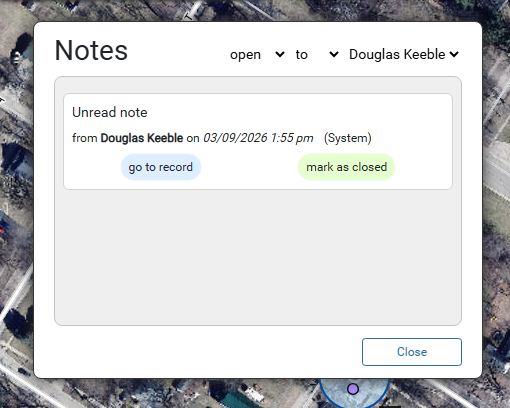
Once the Notes viewer has been opened, it defaults to show all open notes that have been tagged for the current logged in user.
To move the Notes viewer, initiate the drag from the top of the viewer where it says Notes.
The toggles at the top of the viewer can be changed to show open/closed, to/from and and any user of the map; this way all combinations can be quickly checked.
From here the user can quickly go the record the note is attached to.
This is also the only place the note can be closed, so it no longer counts towards the notification dot on the bell icon.
Notes can only be closed by the user who was tagged in the Note.
Adding a Note #
Notes can only be added to System, Well, and Facility features.
To add a Note, first go to the feature you want to leave a Note on and at the bottom of the form there will be a Notes section.

Add just like any other other feature by being in edit mode and clicking the plus sign next to Notes.
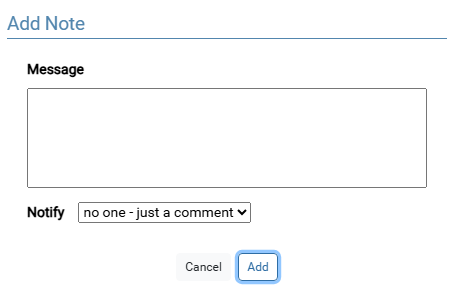
Here the Note is given a message, and can be tagged for a specific user.
If the default is chosen, no one, then the Note will be like a comment on that feature and will not show up in the Notes viewer.
If a user is chosen from the list, then the option to send the notification as an email is available.
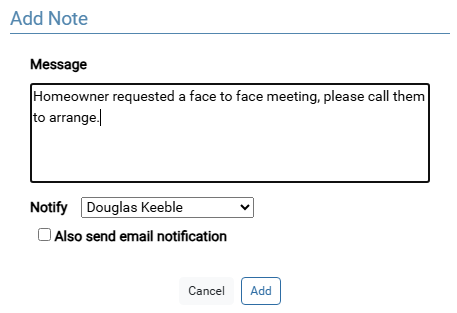
Notes In The Form #
As Notes accumulate on a record, they are ordered by status, then by date. For example, open Notes will always be at the top of the list, followed by closed Notes in chronological order.
If there are more than 3 Notes on a feature, then a button that says toggle notes will appear and will show all Notes on that record.

The form is also the only place that a Note can be deleted; by clicking the more information button and selecting delete.
Possible Workflow #
- Received a phone call about a property, but requested sanitarian was out of the office.
- Added a Note on the property with the message, and selected to send an email.
- Sanitarian is notified via email that they have a new Note.
- Sanitarian logs in and checks the Notes viewer and finds the message.
- Sanitarian goes to the feature and completes the Note.
- Sanitarian then goes back to the Notes viewer and marks Note as closed.