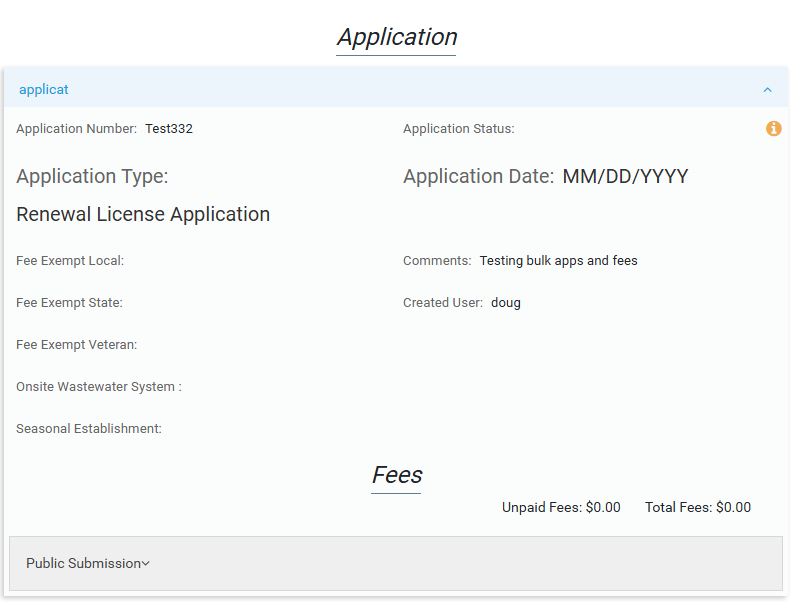
Forms built in the Application layer can become public submission forms allowing the public to submit Applications online.
Setting Up #
There is a master enable/disable toggle; if disabled all public submission forms regardless of their individual setting will be turned off; if enabled each individual form’s setting will be honored.
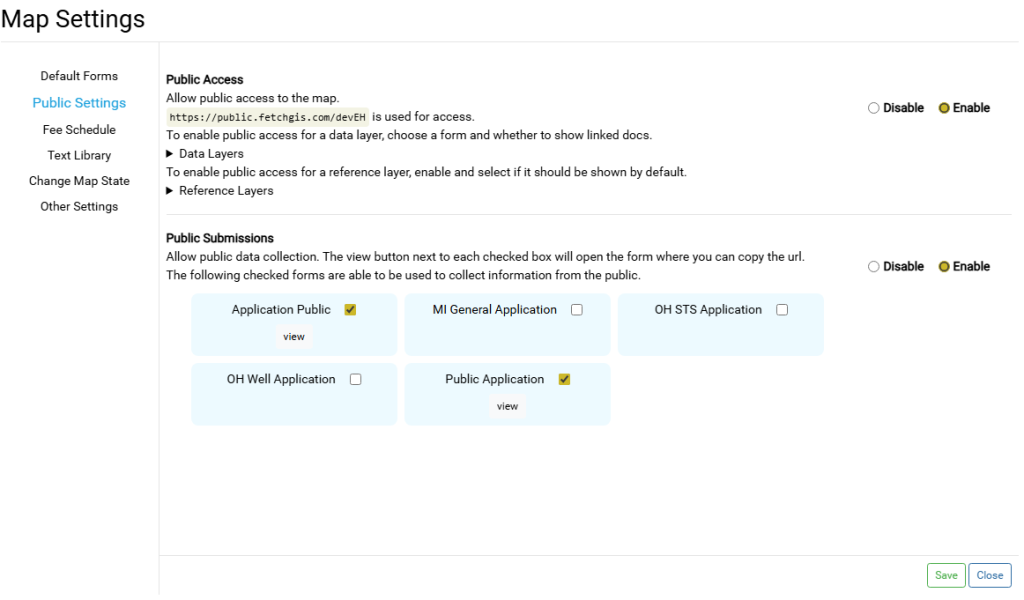
Once an Application form has been checked and saved, it will be a live public submission form. A view button is provided that opens the public view of that form for reference to share or post the link. This is the url needed for the public to access the form for submission.
Public submission forms can be built with parent fields in Form Designer to allow for better data collection. See this article. These fields will transfer over to the parent feature if/when the application is processed.
The public view will be a simplified version of the form, meaning not all formatting and special tools will carry over. So check often while designing.
The Submission Process #
Clicking the view button for a public submission form will take you to the live public view.
The following is a breakdown of what happens upon submission.
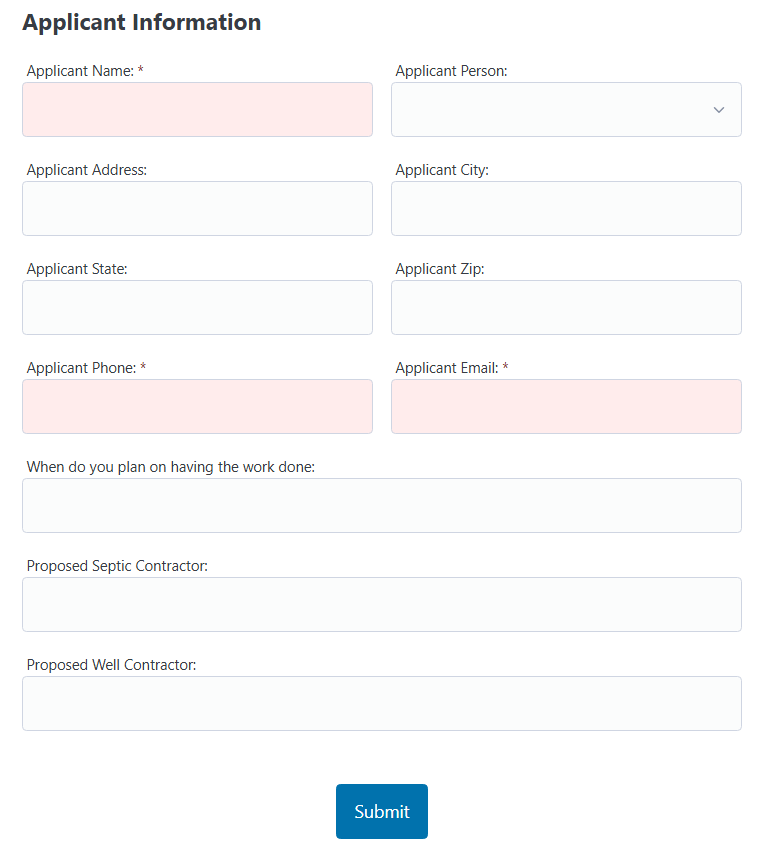
If email fields are present and filled out in the form, the user is prompted to verify their email address, mostly to ensure further communications between the Health Department and the user.
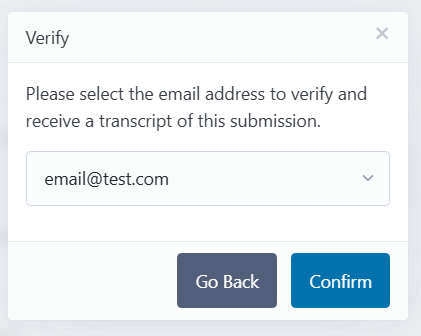
Upon confirming, the user is sent an email containing a code for verification.
After entering the code the submission is complete, and if an email address is present, the user will receive a copy of the form submitted.
Managing Submissions #
Public Submissions are meant to be temporary unverified data. Once the submission has been processed, all tracking information should be on the permit that gets created in response to the application.
Viewing Submissions #
To manage/view Public Submissions in the map click in the navigation bar.
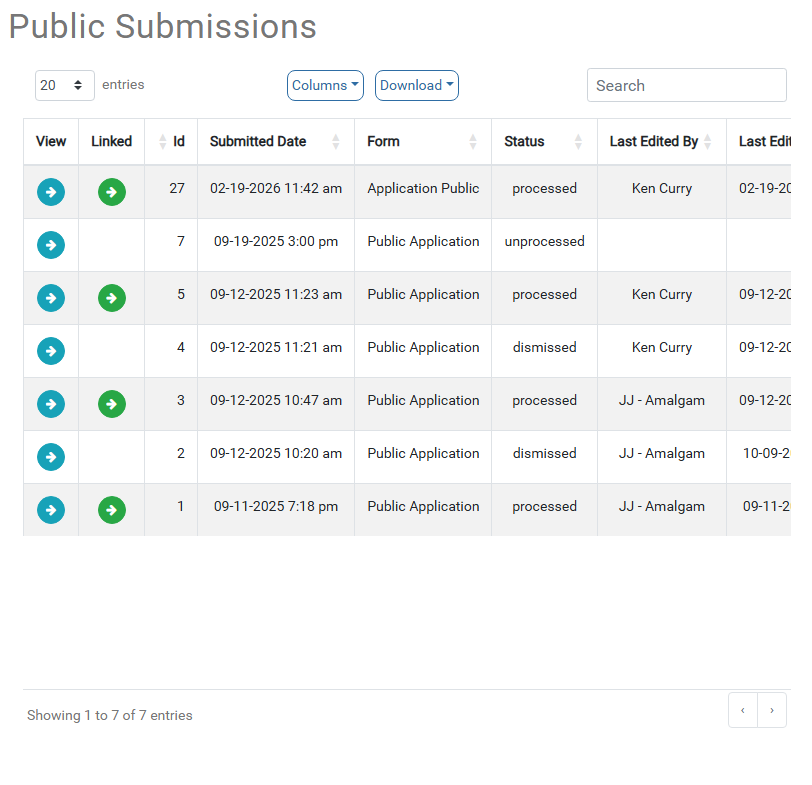
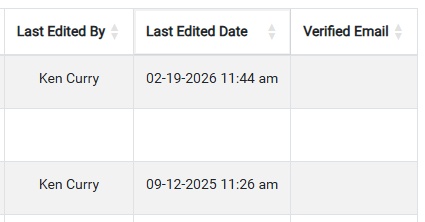
The email address that was selected and verified during submission is recorded on the public submission record.
A Public Submission can have one of three statuses:
- unprocessed – This is a new application and has not be processed.
- processed – This application has been processed and an actual application record has been created.
- dismissed – This application was spam/junk or otherwise not fit for processing.
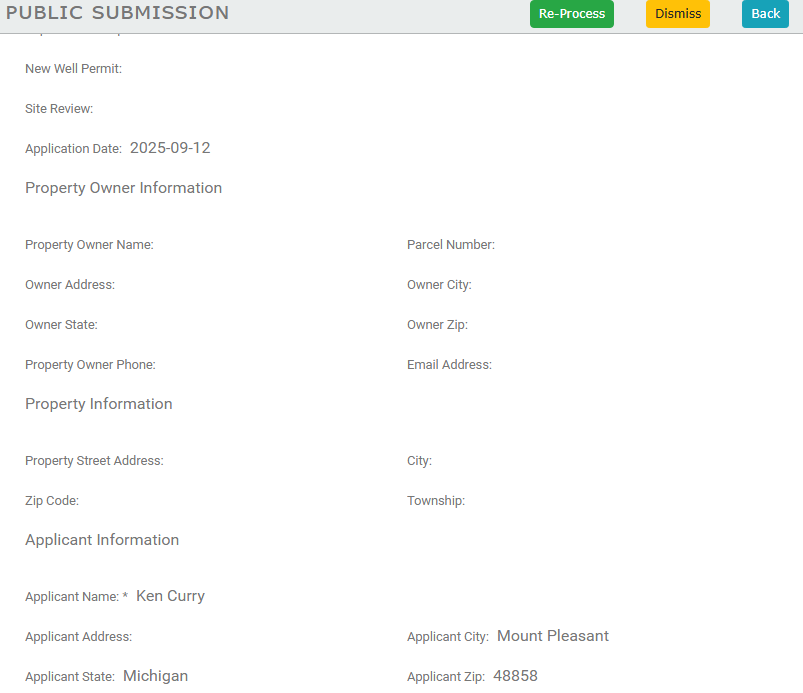
Viewing a submission by clicking the blue arrow button will show exactly what the public user submitted, and also starts the workflow of processing that submission.
Clicking the green arrow button in the Linked category will try to open the parent feature that submission is linked to and show the Application that was created from that submission.
Managing a Submission #
Once a submission has been evaluated, it should be marked as dismissed or processed.
Dismissing updates the Public Submission record as dismissed and includes the time and user who did so.
When processing a submission, the parent record to attach the Application record to needs to already exist. If the parent record doesn’t exist, it will need to be created, otherwise the map should be panned to the location of the parent record so it can be selected.
Locate #
Any addresses that have been filled out by the applicant will have a blue underline.
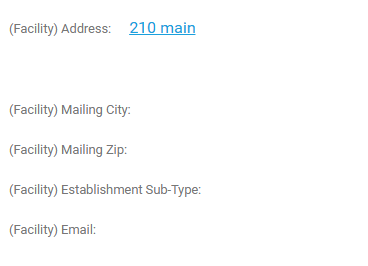
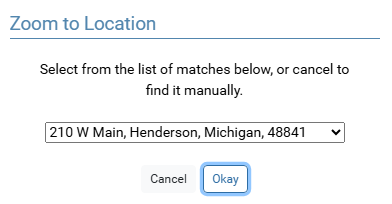
Clicking the address will open a list of matching addresses.
Clicking Okay will pan the map to that address, where a new feature can be drawn, or the Submission can be attached to a feature there.
Processing a submission then asks to select a parent to create an application record on. During the creation, all data fields from the Public Submission are copied to the newly created Application, and any parent fields are presented to the user to allow updating the parent record.
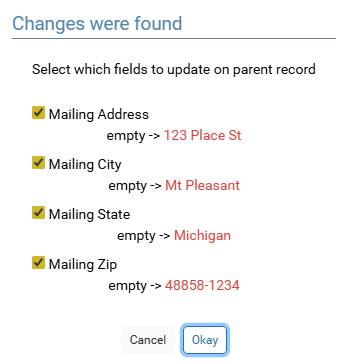
Clicking Okay will updated the Public Submission record as processed and add the user name and time. Also a new Application record is created and will try to open the new Application record.
The bottom of this Application record will house a copy of the original Public Submission for referencing.