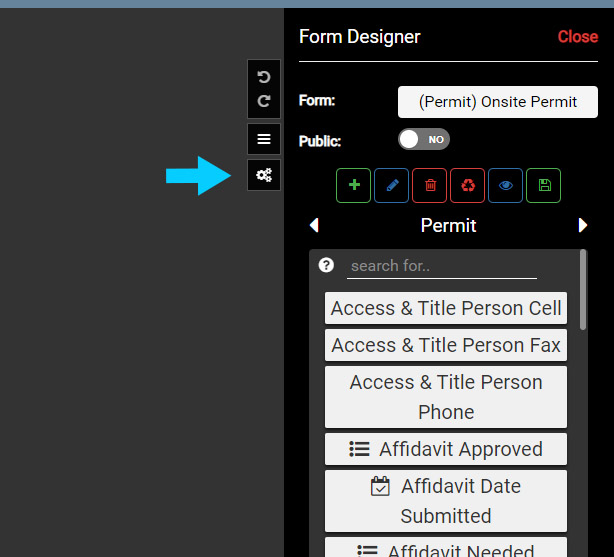
Map Settings are managed under the Form Designer menu, so to access Map Settings select the Form Designer button on the Main Menu.

Use the Side Pane menu in Form Designer to select the Map Settings button. This will open the Map Settings menu.
Next, select the Default Forms text to open the Default Forms options.
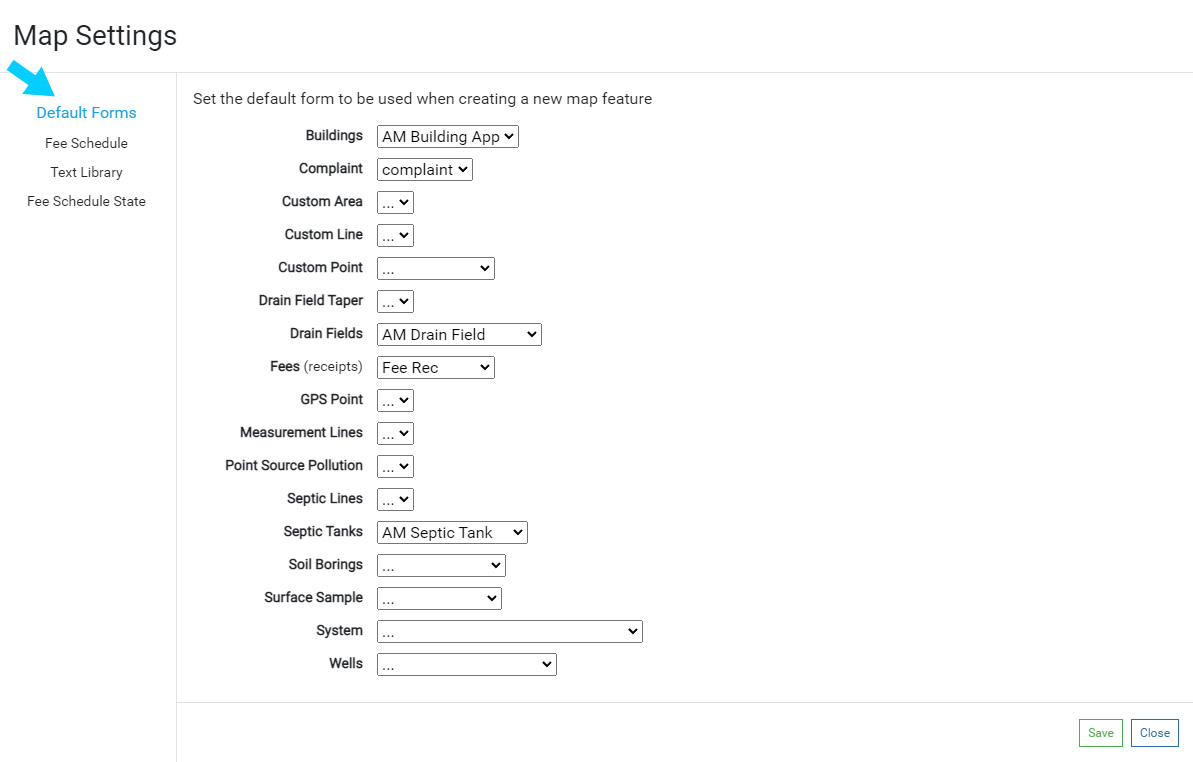
Default Forms can be set for both the Sewage/Well Permitting and Food FetchEH. Default Forms, when defined, set the Default Form that will appear when creating a new map feature, such as a Restaurant, Body Art, System, Septic Tank, Drainfield and more.
Setting Default Forms for new Restaurants, Systems or Wells can help standardize what Form is presented when a feature is first created. This is especially true if there are multiple Forms used for Restaurants (Application, Food Inspection) or Systems (Application, Permit, Site Evaluation).
Setting Default Forms #
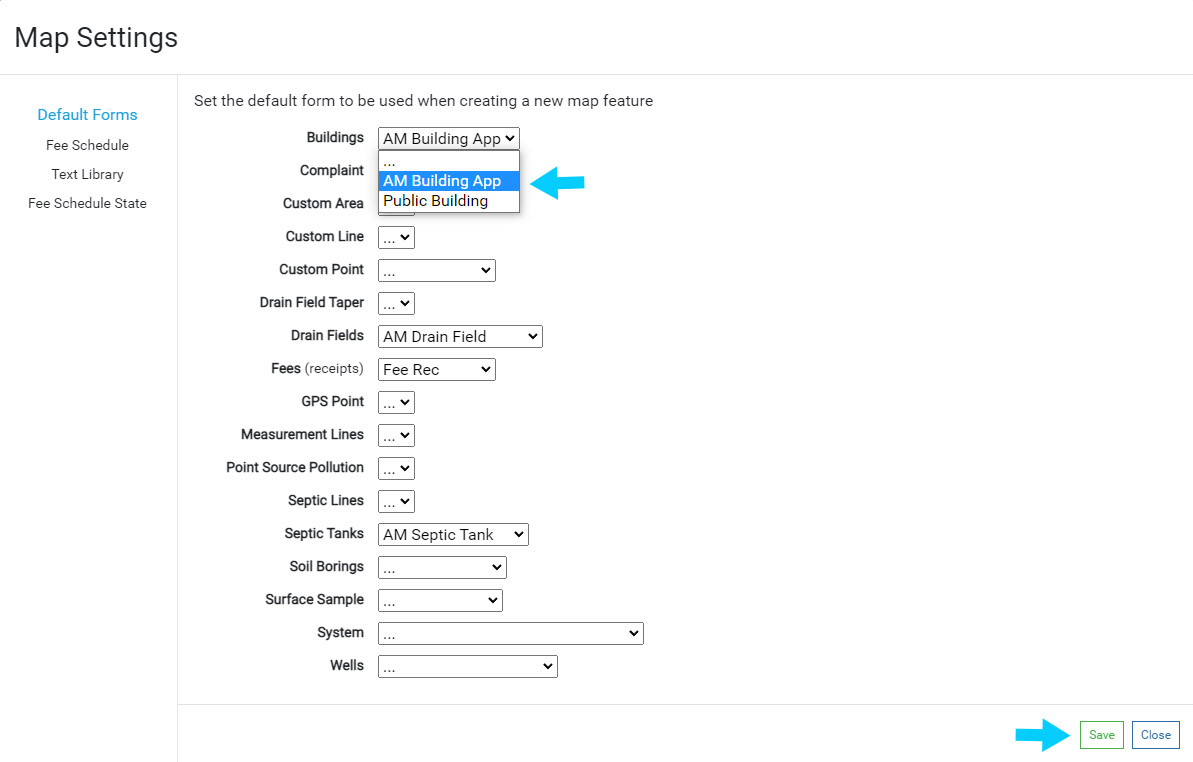
To set a Default Form for a map feature, use the pick list menu to select the Default Form. The selected Form will now automatically be displayed when the corresponding new map feature is created.
In the example below, the Buildings Default Form is set to ‘AM Building App’, which means when any new building is mapped this Form will be displayed for entering data.
Use the Save button to save any changes made to the Default Forms.