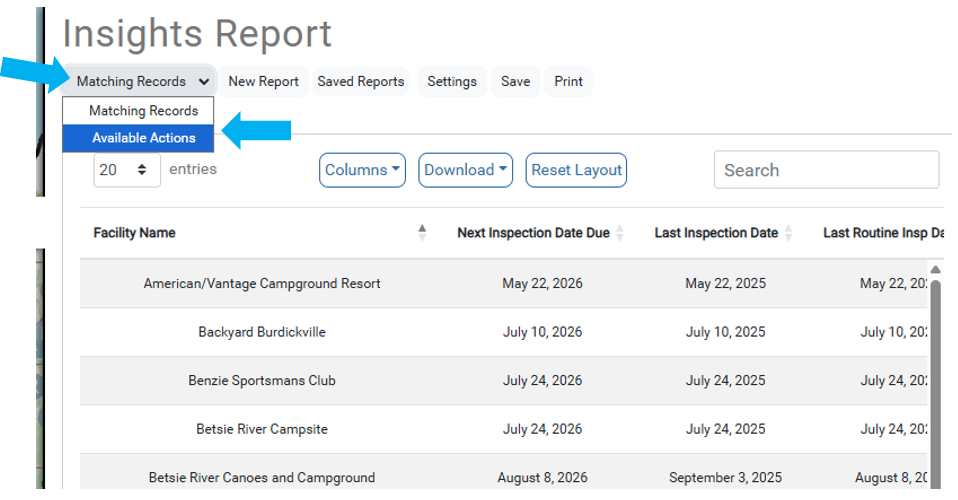
After running an Insights Report, there are advanced tools under Available Actions.
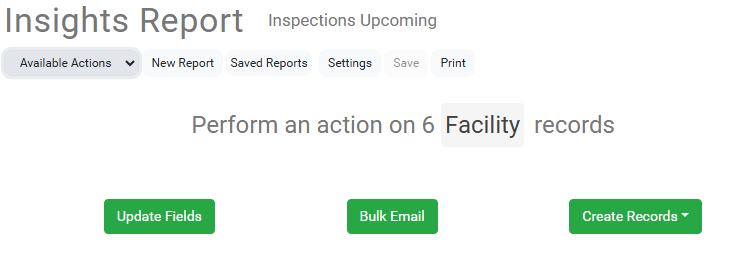
These tools use the data returned from the Report and can be used in many different workflows.
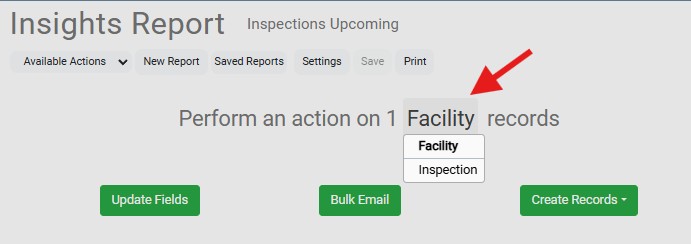
Actions performed will only be on the layer selected. To change the layer, click here.
Update Fields #
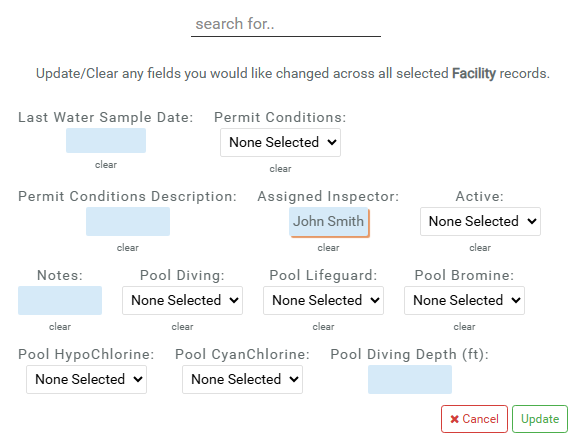
Clicking Update Fields opens a bulk editing modal. Here values can be set to populate across all records in the Report. For example, a new Inspector could be assigned as a replacement.
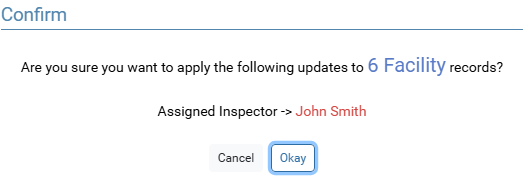
After clicking Update, the user will be asked to confirm changes made in the modal.
Bulk Email #
This tool allows an email address to be sent to the records returned from the Report.
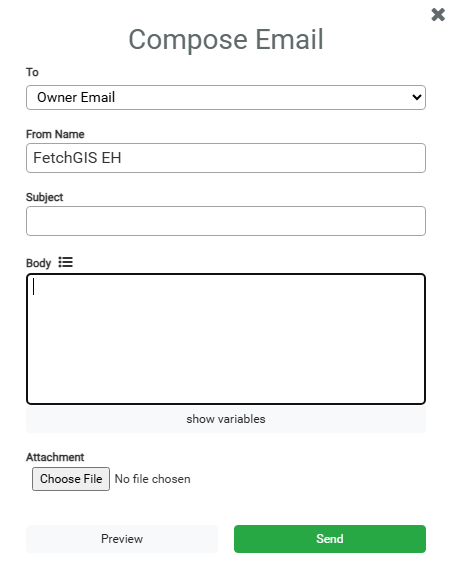
The To field is a list of available email fields from the selected layer.
The Body is a Text Library field which allows templates to be created. See more in this article.
Clicking Show Variables allows the user to put information from the layer into the email.
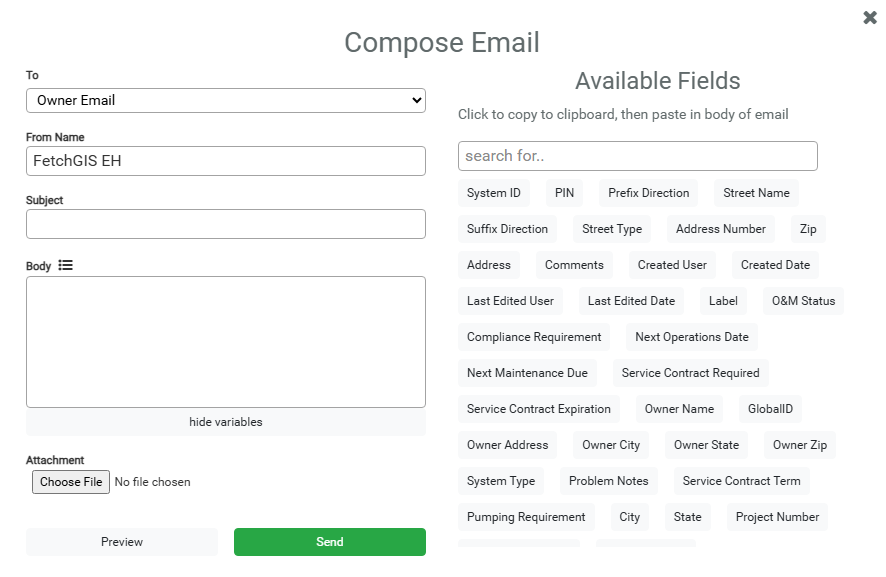
Clicking a field from the list will copy the necessary code to the clipboard that can be pasted into the Body.
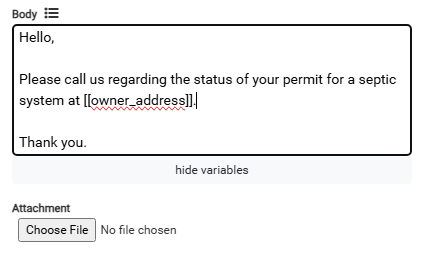
Clicking the preview button will show what the email will look like, with the variables replaced with the actual values.
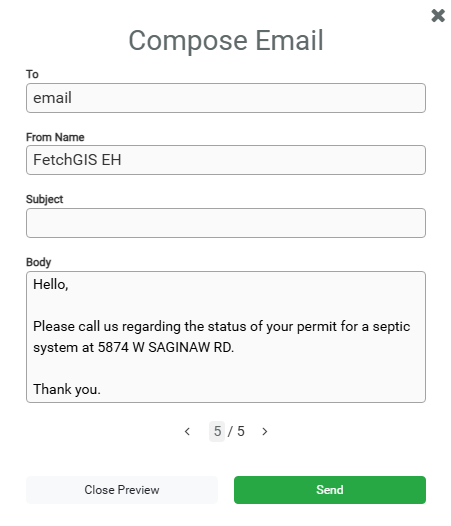
The preview can be toggled through by clicking the arrows.
Create Records #
There are some layers that allow the bulk creation of records. Be aware that there is no easy way to bulk delete records.
Fee #
Clicking Select a Fee will open a dropdown with all Fees in Fee Schedule relevant to the currently selected layer. After selecting, the fields will be updated with that Fee’s saved data.
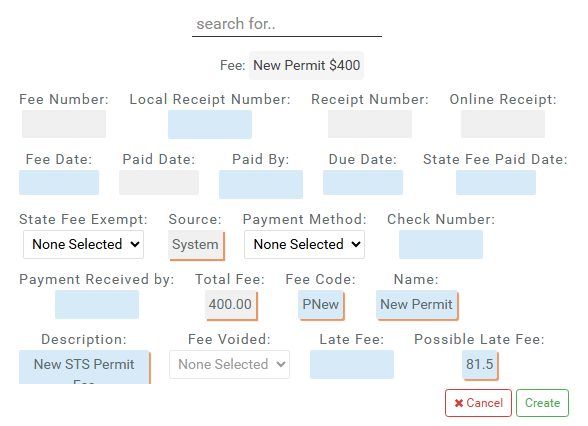
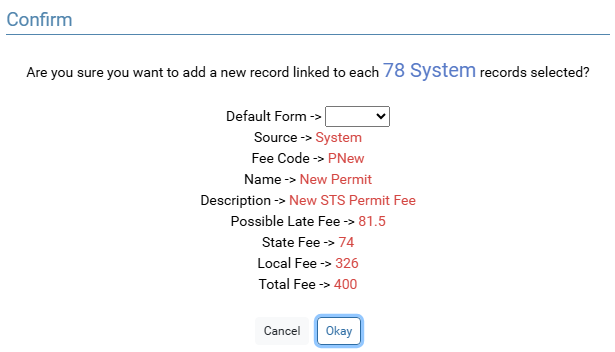
Clicking Create will present the user with a confirm modal where the default form can be set for the Fees about to be created.