
Fees are a special layer in FetchEH because they represent a financial transaction. Fees are meant to serve as a tracking mechanism, and as such are not as robust as fees in a financial software.
Adding Fees #
Adding a fee is no different than adding any other type of record.
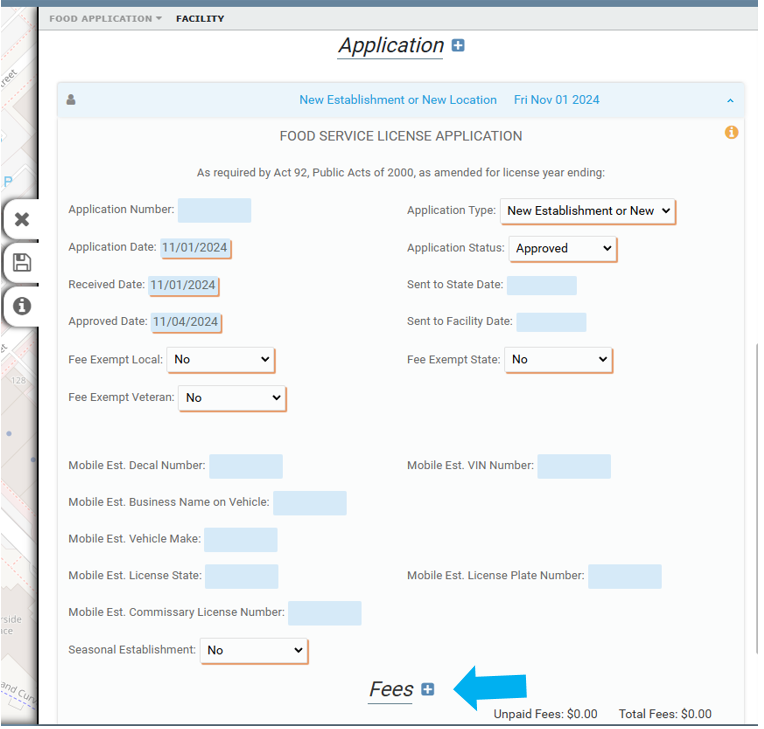
First make sure that fees are linked to the form you will be using. While in edit mode, click the plus sign next to Fees.
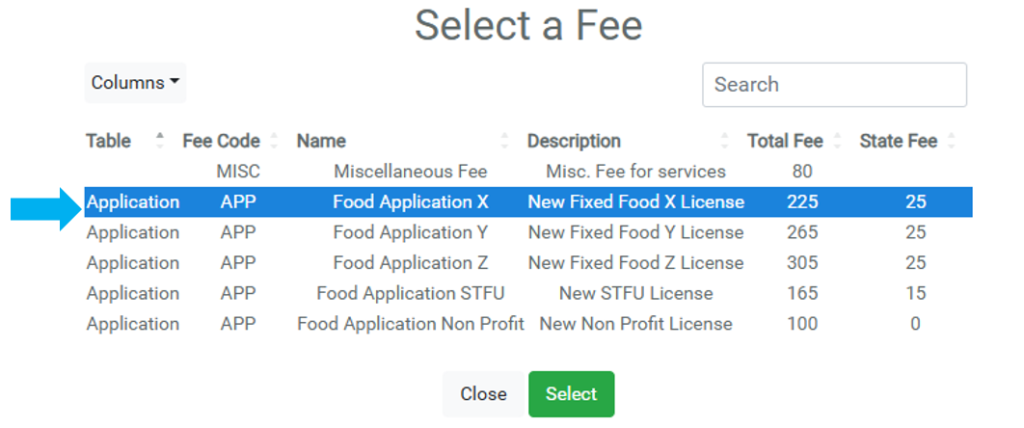
A new modal will appear where you can select the Fee Schedule item to add.
To edit the Fee Schedule, reference this article.
After clicking Select, the Fee has been added. You can then immediately edit the Fee.
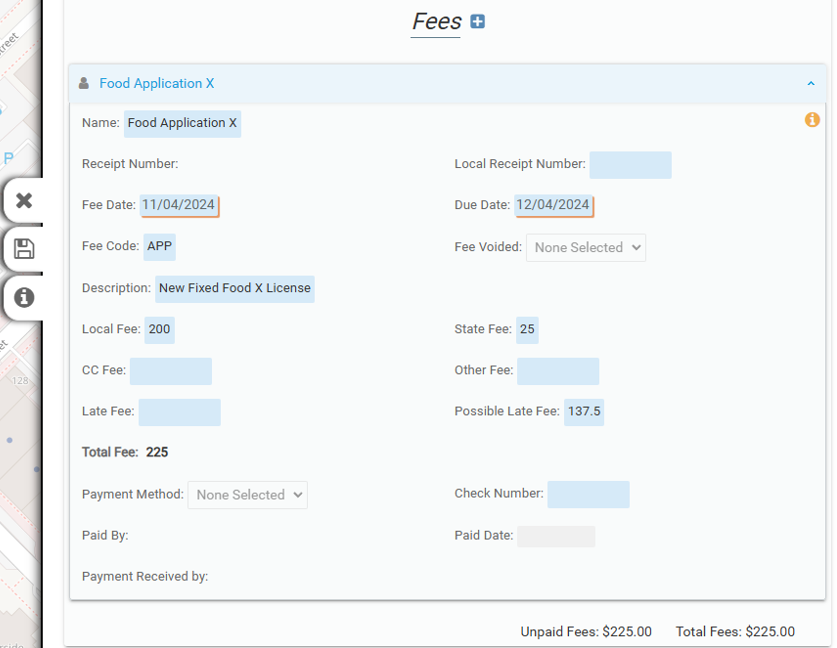
There are 2 running totals calculated for each group of Fee records on a record shown at the bottom right corner: Unpaid Fees and Total Fees. Unpaid Fees is a quick visual showing any Fees that have not been paid yet.
Paying Fees #
Fees are paid using a dedicated workflow.

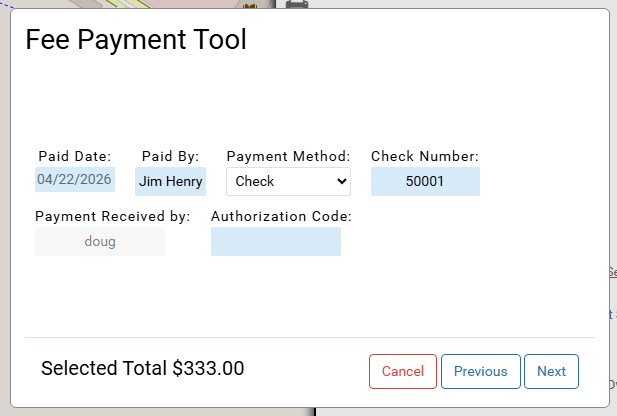
The Fee Payment Tool.
This tool is only accessible when there are unpaid Fees attached to that particular parent record.
The Fee Payment Tool guides the user through correctly accepting a payment for one to many Fees.
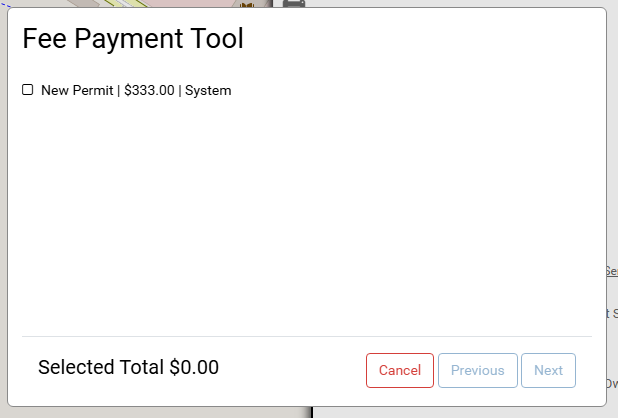
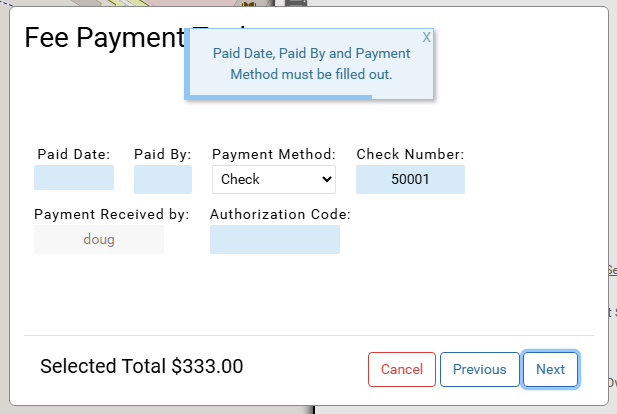
Insufficient information will display a prompt and will not let the user continue.
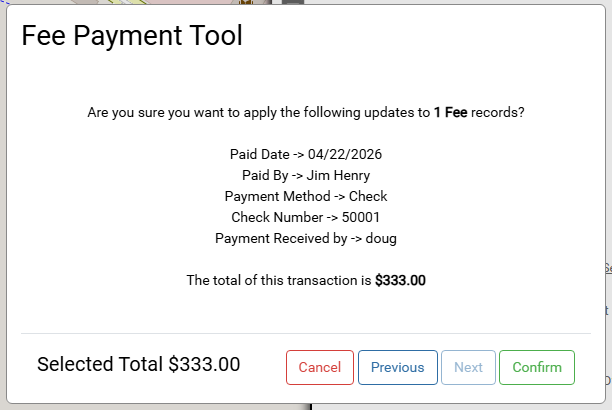
After confirming, the user is presented with the option of printing a receipt.
Receipts #
Receipts can be printed/uploaded/emailed just like any other print job in FetchEH. See this article.
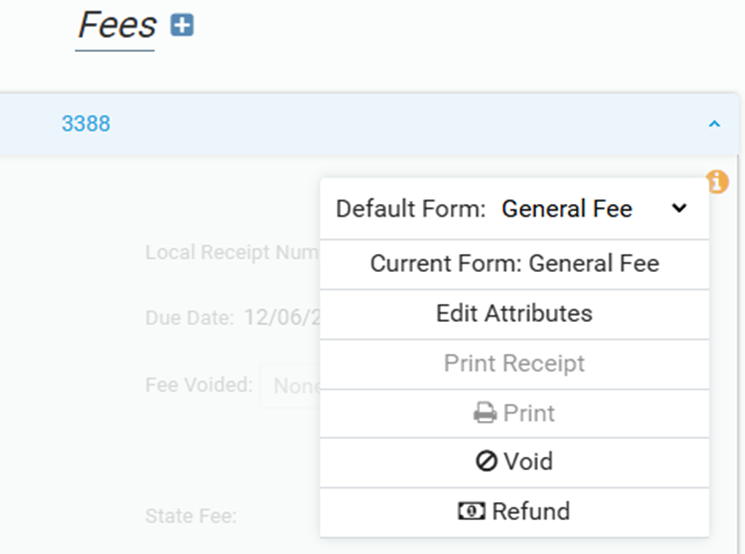
To reprint a receipt, go to the Fee then More Information then Print Receipt.
Voiding & Refunding Fees #
Because a Fee record represents a financial transaction, there is no option to delete the Fee. Instead there are 2 options: Void and Refund.
Void #
- Will cancel the transaction and it will no longer appear on the form.
- The Fee item can still be found by performing an Insights Report for voided fees.
Refund #
- Will create a new Fee record to negate the refunded Fee.
- For example, refunding a $300 Fee record will create a new Fee record with a total of -$300.
- To complete a refund, the Fee Payment Tool must be run on the refunded Fee.
Important Considerations #
If the Fee has been Paid, only a Primary User can void the Fee.
If the Fee has not been Paid, any user with editing rights for the Fee layer can void the Fee.