Saved Responses are used to add standard Observations and Corrections for Violations. Saved Responses are only available for Food.
Saved Responses are displayed when a Violation is added to an Inspection and the user selects the Observation or Correction field. After selecting the Observation or Correction field, any Saved Responses are displayed as a pick list, and when selected are added to the corresponding Observation or Correction field.
Note that if there are no Saved Responses that correspond to the Violation that has been added to an Inspection, the pick list will be empty. Users also have the option to not use the pick list and enter their own text.
Managing Saved Responses #
Adding, modifying or deleting Saved Responses initiates by selecting a corresponding Violation.
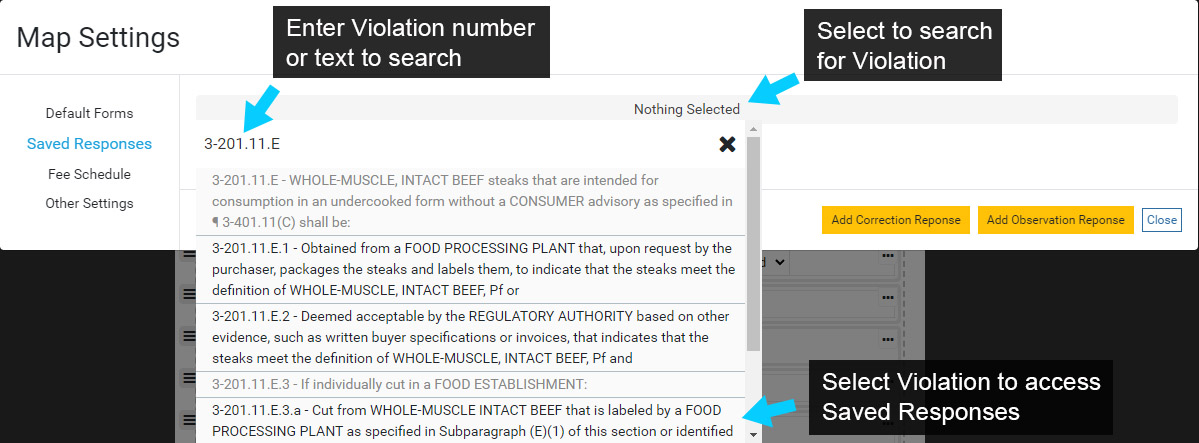
Select the gray header (Nothing Selected) to search for a Violation. Find a Violation by scrolling the list or searching for a specific Violation.
Search terms can include text or the Violation number. Note that a partial Violation number can be entered, but the format below should be used:
Complete Format: 3-201.11.E.3.a
Partial Search: 3-201.11
Select the Violation that you would like to add, modify or delete Saved Observations from.
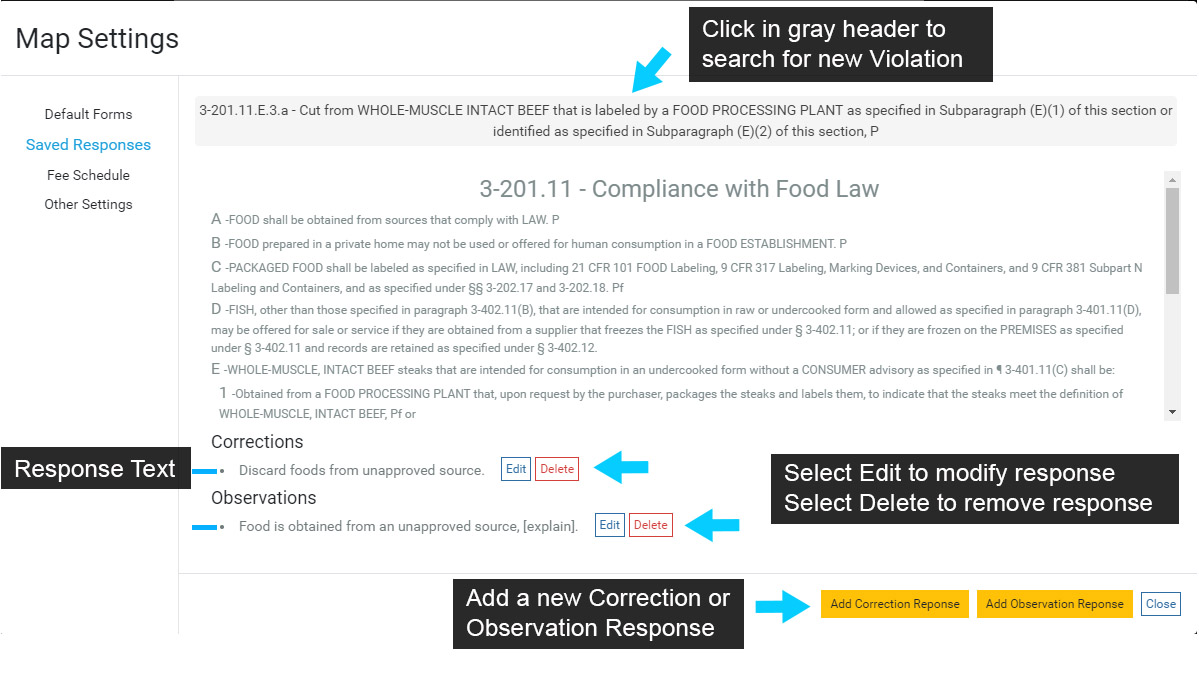
The current Violation is displayed in the header and in the area beneath the header. To search for a new Violation, select the header again.
Note that Save Responses are organized by the Violation section. In the example below the Saved Responses will be available for all 3-201.11 Violations, including all sub-sections (3-201.11.A, 3-201.11.B and so on).
Existing Correction and Observation responses can be modified by selecting Edit, or removed by selecting Delete.
Adding a new Saved Response can be accomplished by selecting the corresponding Add Correction Response or Add Observation Response.
Save any edits to existing or new Responses.