
Map Basics #
FetchEH is a software designed specifically for Environmental Health workflows and data. The workspace is designed around the interactive map and complimented by a number of menus, forms and side panes that provide functionality. This section introduces the various options available to navigate the map and manage map content.
Map Navigation #
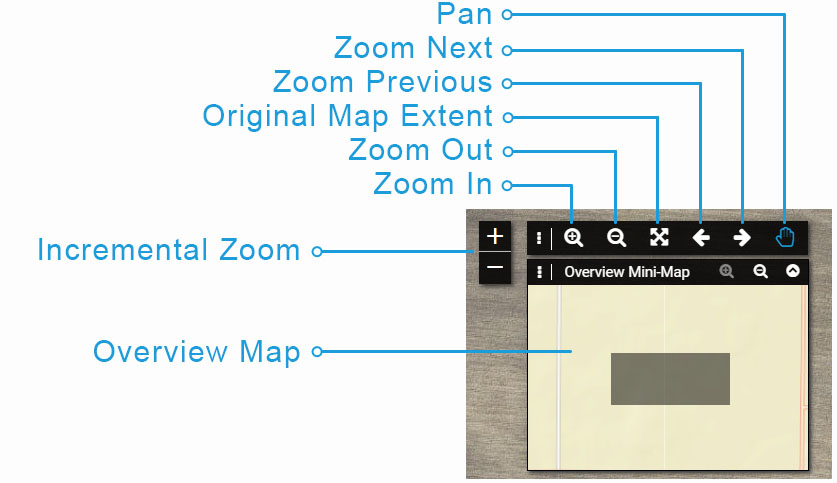
Map Navigation is conducted using common navigation tools accessed from the Navigation Tool bar.
The Overview Map displays the current map extent (geographic coverage) as a rectangle. The Overview Map can be used to Pan the current map display by placing the cursor over the rectangle and dragging it to a new location in the Overview Map.
Important: Map Layers, such as parcels, are displayed based on zoom level. This is often referred to Level of Detail (LOD) and means that a Map Layer may not be visible until the map display is sufficiently zoomed in.
Information Windows #
The Information Window is used to select a feature, such as a Restaurant or Onsite System, and use the “Show Form” button to open the Form to collect, view or edit information.
Information Windows can also be used to display information about map features like Parcels and research layers from other map services like Wetlands, Soils and more.
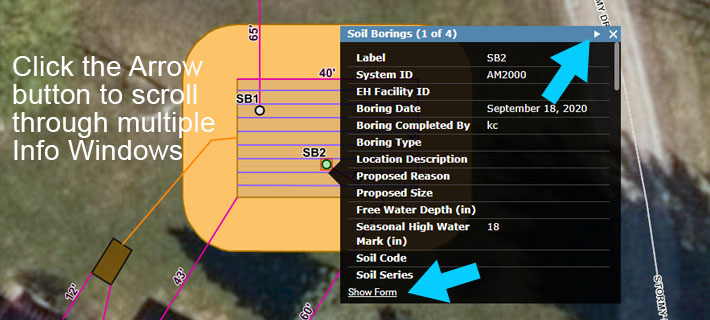
To open the Information Window use the Pan Tool to click on any feature. The Information Window will open and display information about the feature that was selected as displayed in the example:
Note that it is possible to select more than one feature based on the proximity of mapped features. Reference the Title bar on the Information Window to identify the current feature displayed in the Information Window. There are multiple overlapping layers in the image with the Information Window showing the Soil Borings (1 of 4). The (1 of 4) indicates that there are four features that have been selected. Use the Arrow button on the Title bar to scroll to the other selected features and open their corresponding Information Window.
Main Menu #
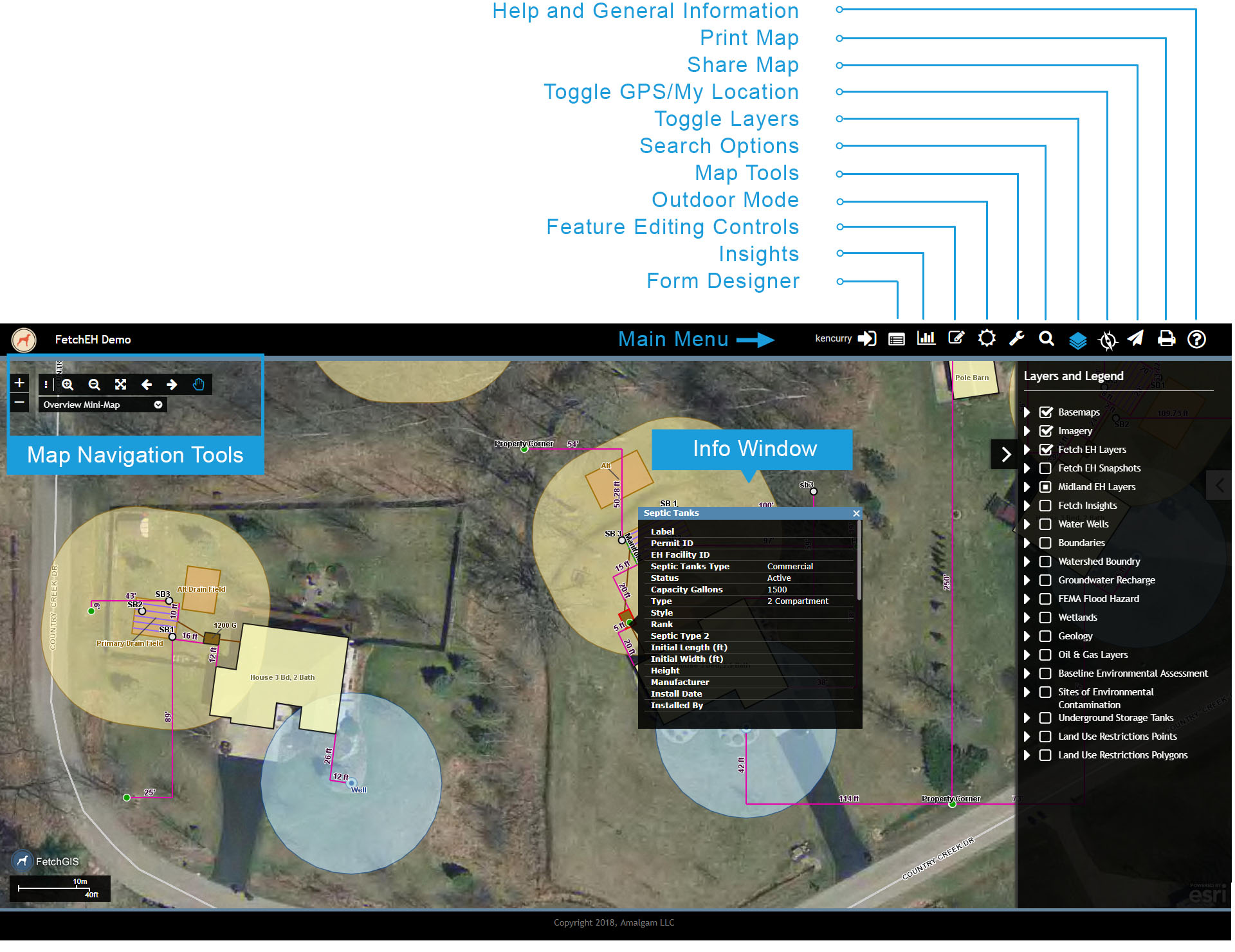
The Main Menu Bar (see below) provides access to the tools available in FetchEH. Selecting an option on the Main Menu bar will often open additional menus, which are displayed in the side pane or as new windows in the application.
Options available on the Main Menu are described below:
Prepare To Go Offline – Used for mapping in Offline mode (see Field Preparation for more on creating a map tile cache and working Offline).
Form Designer – Open the Form Designer to create, modify and manage Forms.
Insights – Access Insights tools to build and apply Visualizations, Filters and Reports to better understand your data.
Feature Editing Controls – Access tools to map and edit onsite wastewater systems and wells.
Outdoor Mode – Change the contrast of the workspace to enhance display in outdoor conditions where bright light can negatively impact the ability to view he workspace.
Map Tools – Provides access to a number of tools used to interact with the map display including Measure tools, Graphic Markup tools and Layer Swipe.
Search – Access search options for finding systems, permits, parcels, road intersections and more where available.
Toggle Layers – Displays the Layer Groups and Map Layers available in the EH Application including local GIS layers and layers from federal and state sources. Control visibility for Layer Groups and Layers and view symbology for each Layer.
Toggle GPS – Displays the current location of a user on the map when GPS is enabled on their mobile device. Note, positional accuracy is determined by the internal (tablet) or external GPS and not FetchEH.
Share Map – Provides a Tiny URL map link that can be used to share a map via email, social media or other option.
Print – Opens the Printing options for creating custom maps that can be printed and/or saved as a PDF.
Help – Access to Help documentation and General Information.
Map Layers #
Control layer visibility and view layer symbology by selecting the Toggle Layers option on the Main Menu. Map layers are presented as individual layers or managed in Layer Groups such as Imagery or Fetch EH Layers. To view the layers in a Layer Group click the chevron next to the Layer Group name.
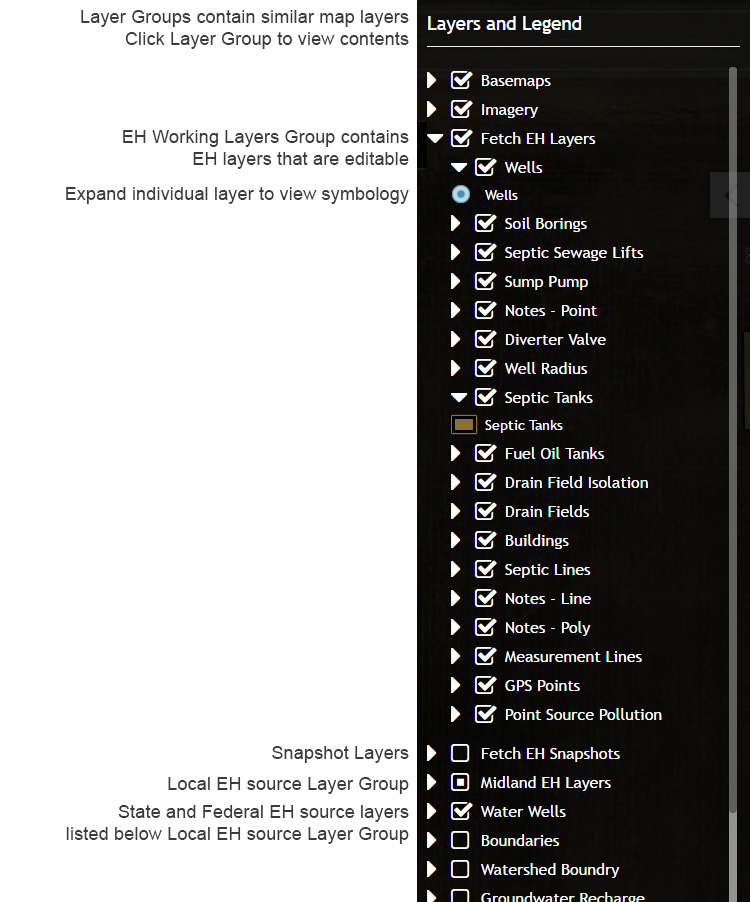
Layer Visibility – Map Layer visibility is controlled by toggling on/off the check box displayed to the left of the Layer name. Toggling the visibility on/off for a Layer Group will turn on/off all Layers in the Layer Group.
Layer Symbology – To view the Legend/Symbology for a Layer click the chevron displayed to the left of the check box.
Fetch EH Layers Group – Contains all EH working layers that can be mapped and edited in the application.
Fetch EH Snapshot Group – Contains all EH Snapshot layers that have been created.
‘DEPARTMENT NAME’ EH Layers Group – Contains local EH layers such as parcels, landfills or other GIS data added to the application.
Research Layers – Map layers available from State, Federal and other non-local resources are listed individually below the ‘DEPARTMENT NAME’ EH Layers Group.