FetchEH automatically populates certain fields with the username when a feature is created. One example includes when a Food Inspection is created, the Inspection Conducted By field is automatically filled in with the username of the person logged into FetchEH. This also occurs when a Construction Inspection is added to a Permit where the Evaluation Conducted by field is automatically filled in with the username.
Initially, FetchEH creates a username based on part of the users email address, which is not always the full name of the user and will not have a space between the first and last name. For example ‘kencurry’ or ‘kcurry1’ are examples of common usernames initially assigned by FetchEH. This initial username is not the best option to display in fields that are automatically populated with the username. Fortunately, there is an option to create a display username name, such as Ken Curry, rather than using the username initially created.
To create a display username start by logging into FetchEH. Then select the My Account button on the Main Menu.

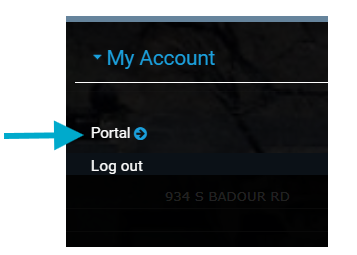
Next select Portal in the My Account Side Pane Menu. This will open Fetch Portal in a new window.
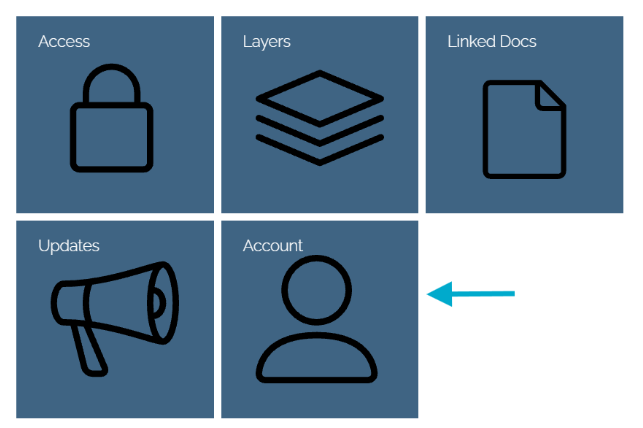
Login to Fetch Portal and then select Account.
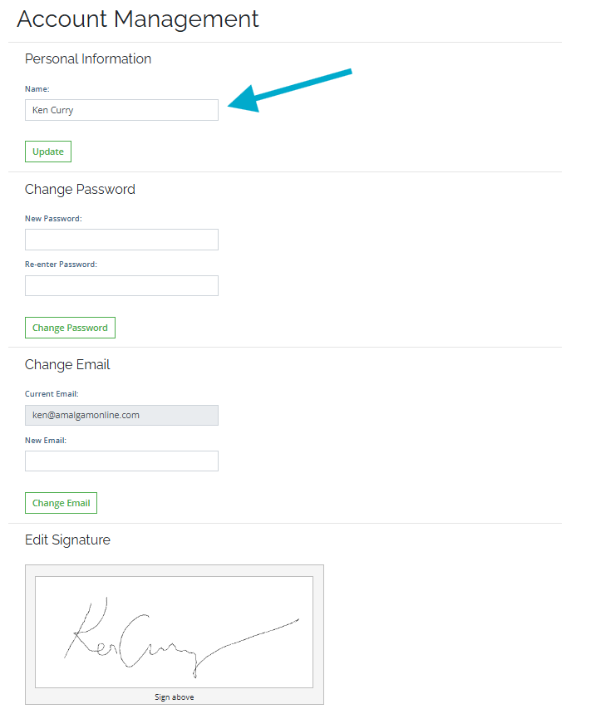
Under Name, enter the name that will be displayed in fields that are automatically populated in FetchEH. When your finished make sure you select the Update button to process the changes.
Note that you can also modify your password, update your email, and add or update your signature on the Account Management page.